
Thursday, 27 March 2014

Pre-Project 6: Movie Posters (What we like about these movie posters)
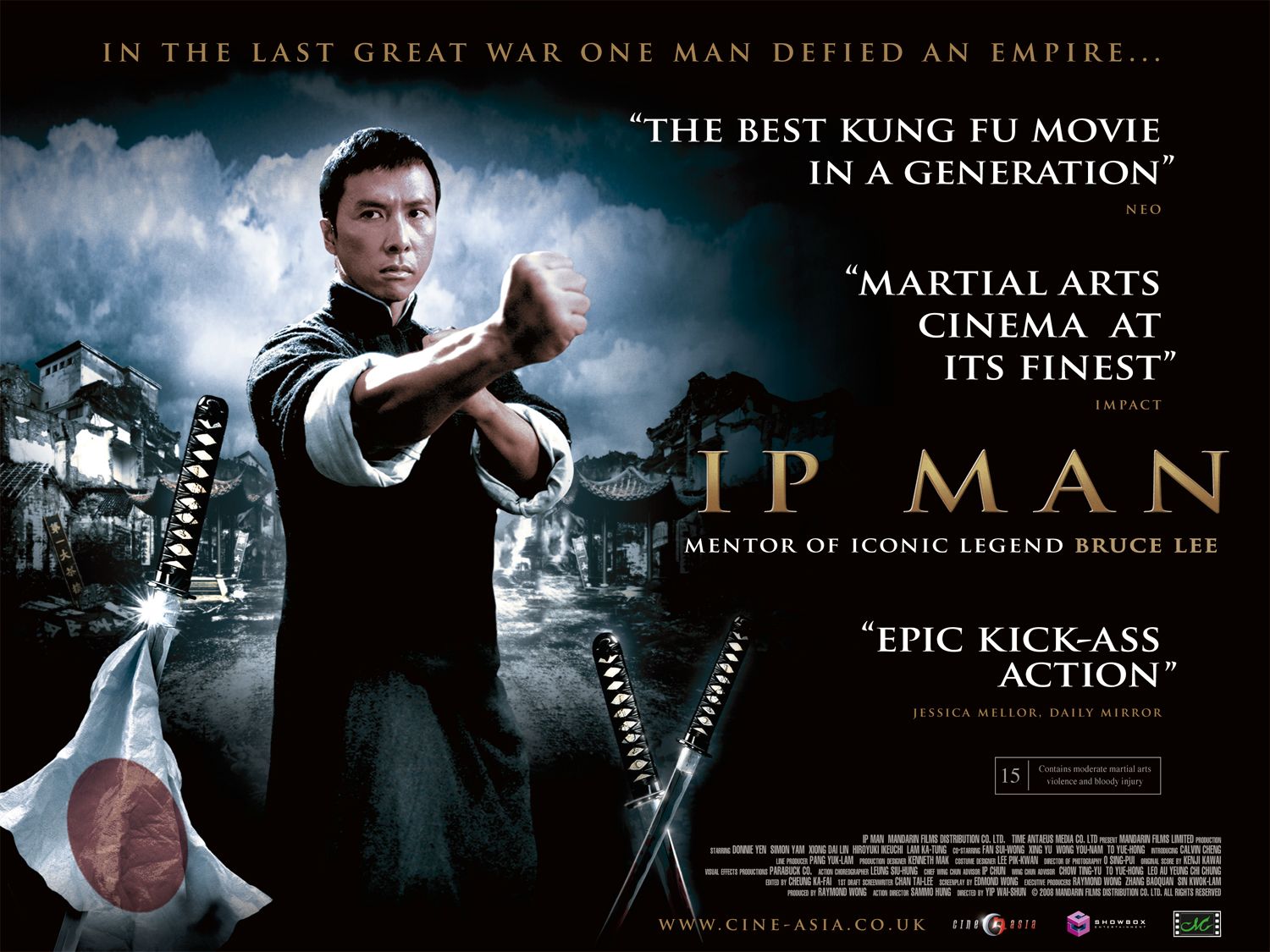
- I like this poster because this movie is based on a martial artist who goes against the japanese empire to be free, and it depicts that scene by showing the japanese flag falling on the bottom left. (When a flag falls, it shows that, that country/nation is falling)
- I like martial arts so naturally I like almost any martial art movie
- This movie takes place in China, and I like how the background shows a little bit of Chinese architect. (i.e. the building on the right)
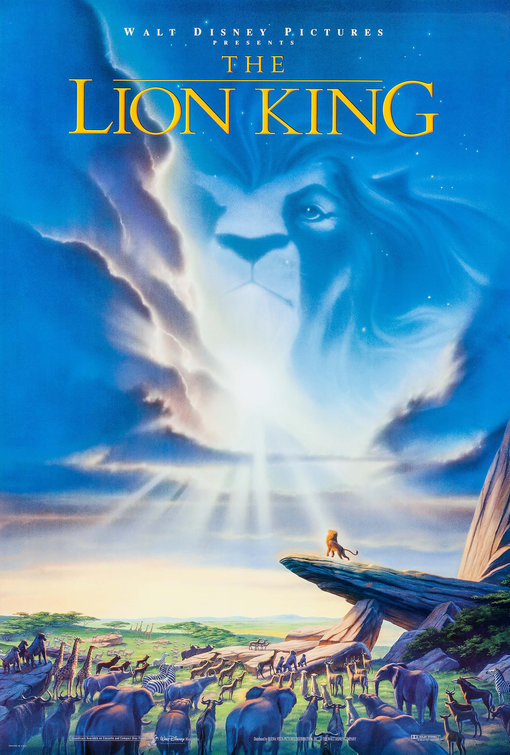
- I like this poster because I really like the Lion King
- I like how Mufasa's silhouette merges with the clouds and stars. (If you watch the movie then you'll know that there is a scene where Mufasa says that he will always be watching Simba from the stars.)\
- I like how the rays of the sun show a gradient light that almost envelops Simba on the Pride Rock.

- I like how you can see the pyramids in the background. (When I was small, I was intrigued by the egyptian culture)
- I like how the background of the pyramids blends with the dust/dirt that is surrounding the bottom portion of the poster.
- Optimus Prime and BumbleBee.......beast....
Sunday, 23 March 2014
Project 17: Business Card (Pixlr)
Business Card:

-I believe I did a good job putting the pictures together, and putting a quote to show what my business can do.
What would I do differently?
-I think I would try blending different pictures together next time.
Wednesday, 19 March 2014
Project 16: Self-Portrait (Pixlr)

-I think I did a good job in merging the pictures together.
What can I do differently?
-I believe that I can try and make it so that the pictures do not have white or black backgrounds.
Pre-Project 5: Layer Masking (Pixlr)

Steps on how to use Layer Masking:
-First gather the pictures that you would like to merge
-Then pick one picture as your background
-Then use the marquee tool to move the second picture onto the background, after that is done, resize the second picture so that it covers the entire canvas
-Then go to the layer panel and on the bottom, click "Add Layer Mask"
-Once that is done choose the Gradient Tool on the tool panel, then slowly merge the picture so that it suits you
Monday, 17 March 2014
Pre-Project 4: PhotoShop Basics (Pixlr)

Tools I learned to use:
-Cropping Tool
-Marquee Tool
-Paintbrush
-Pencil
-Clone Stamp
-Paint Bucket
-Eraser
-History
-Lasso
Sunday, 16 March 2014


Subscribe to:
Posts (Atom)